Carousel Image Splitter

Split a wide image into seamless Instagram carousel slides, preview the sequence and download in order.

Source imageJPG, PNG or WebP · up to 25 MB / 24 MP

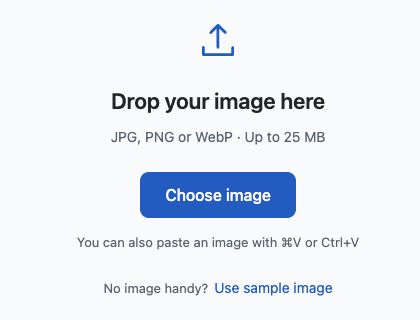
Drop your image here

JPG, PNG or WebP · Up to 25 MB

You can also paste an image with ⌘V or Ctrl+V
No image handy?
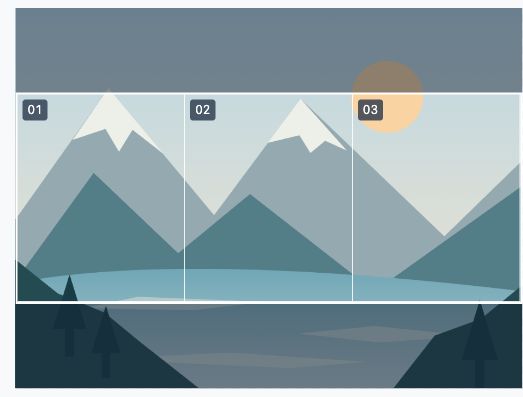
When a tile shape crops the image, drag the crop frame or use arrow keys to move it. Hold Shift for larger steps. You can also use the position sliders.
Your image stays on this deviceNo image selected

How to split an Instagram carousel

Turn one continuous design into an ordered set of slides.

Shown with the sample image
  1. Actual upload area with the Choose image button and supported paste option
    JPG, PNG or WebP · Processed locally

    Choose a wide image

    Choose a wide image containing the full picture or design. Start with a large enough image for the slide sizes you need; the tool does not enlarge small images.

  2. Actual editor preview of three adjacent portrait carousel slides with continuous image edges
    1 row × 3 slides · Portrait 4:5

    Set the slide layout

    Choose a slide preset or enter the number of slides, then choose a shape. This example uses three portrait 4:5 slides.

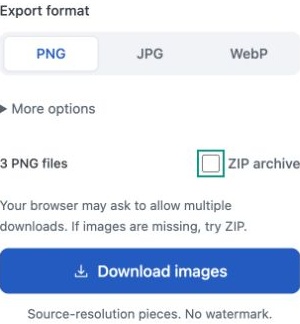
  3. Export format options, optional ZIP checkbox and Download images button
    3 PNG files · Left to right

    Download in slide order

    Keep reading order and download the slides. Select 01, 02 and 03 when creating your carousel. If you choose ZIP archive, unzip it first.

See how a continuous carousel is cut

Actual PNG files exported with this tool, using the included sample illustration.

One continuous picture, three swipeable slides

The mountain slopes and shoreline continue across the cut lines. Each slide contains the next part of the scene, with no added gap or overlapping strip.

1 row × 3 columns · Portrait 4:5 · Reading order

Prepare your carousel
Original · 1200 × 900 pxOriginal mountain and lake illustration before splitting
3 files · 400 × 500 px each
Landscape slice 1 of 301
Landscape slice 2 of 302
Landscape slice 3 of 303
The centered crop keeps a 1200 × 500 strip, leaving out the top and bottom of the original picture.

One continuous picture across carousel slides

A carousel image splitter cuts a panorama or wide design into adjacent slides for one swipeable post. An Instagram carousel stays together in a single post; a profile grid uses several separate posts.

Use the continuous picture to guide readers from one slide to the next. A landscape can run across the full sequence, while text works best inside individual slides where it can be read without swiping back and forth.

Input
JPG, PNG, WebP
Output
PNG, JPG, WebP · ZIP
File limit
25 MB · 24 megapixels
16,384 px per side
Tiles per image
Up to 225

Questions & answers

Slide sizes, seamless joins and upload order.

What makes adjacent slides look seamless?

Their edges come from neighboring parts of the same picture. To keep the joins aligned, avoid cropping or resizing individual slides after downloading them.

What size should my source image be?

Multiply the width you want for each slide by the slide count, keeping the same height. For example, a 3240 × 1350 image splits into three 1080 × 1350 slides. Use those dimensions for your full design if you want that output size without cropping.

Which order should I upload the slides in?

Select the files in numerical order: 01, 02, 03 and so on. If the numbers run from right to left in the preview, open More options and change Numbering to Reading order before downloading.

Why does my image get cropped?

A fixed tile shape can crop the top and bottom or the sides when your picture does not fit the combined layout. Drag the crop frame to choose which area to keep, or select Original under Tile shape to keep the whole picture.

Can Instagram cropping change the result?

Yes. If Instagram crops a slide after export, its edge may no longer line up with the next one. Check every slide in the app before publishing and keep their framing consistent. This tool cannot control how Instagram crops or compresses uploaded images.

Where is my image processed, and is it stored?

Your image is processed in your browser and is not uploaded to or stored on our servers. Clear the image or reload the page to remove it from the editor. Files you download stay on your device.

Will splitting change image quality?

The tool cuts at the original pixel dimensions without resizing. PNG export avoids additional lossy compression. JPG and WebP are saved again at your chosen quality; even quality 100 may change fine detail. Original color profiles and metadata are not preserved.

Which format should I download?

Choose PNG for text, graphics and transparent images. JPG suits photos when file size matters, but fills transparent areas with white. WebP supports transparency and can produce smaller files; check that the app you are uploading to accepts it.