Can I split into three horizontal or vertical pieces?
Yes. Choose 3 across for three side-by-side pieces separated by vertical cuts, or 3 down for three stacked pieces separated by horizontal cuts.
Will all three pieces be square?
Not always. Choose Square under Tile shape for a square layout. Pixel rounding can leave a one-pixel difference. For an exact split without cropping, use a 3:1 image for 3 across or a 1:3 image for 3 down.
Can I use the three pieces for an Instagram carousel?
Yes, but splitting into three parts does not automatically choose a carousel shape or a profile posting order. Use the carousel splitter to prepare slides for one swipeable post, or the Instagram grid maker for separate profile posts.
What if the width or height is not divisible by three?
The pieces can differ by one pixel. For example, a 1,000-pixel-wide picture split into three columns produces widths of 333, 333 and 334 pixels. Three rows divide the height in the same way. Original tile shape keeps the full picture.
Can I download just one piece?
Switch to Download tiles in the preview and choose the tile you need. The main download button saves all pieces; check ZIP archive to package them in one file.
Where is my image processed, and is it stored?
Your image is processed in your browser and is not uploaded to or stored on our servers. Clear the image or reload the page to remove it from the editor. Files you download stay on your device.
Will splitting change image quality?
The tool cuts at the original pixel dimensions without resizing. PNG export avoids additional lossy compression. JPG and WebP are saved again at your chosen quality; even quality 100 may change fine detail. Original color profiles and metadata are not preserved.
Which format should I download?
Choose PNG for text, graphics and transparent images. JPG suits photos when file size matters, but fills transparent areas with white. WebP supports transparency and can produce smaller files; check that the app you are uploading to accepts it.
 ImageSplitter

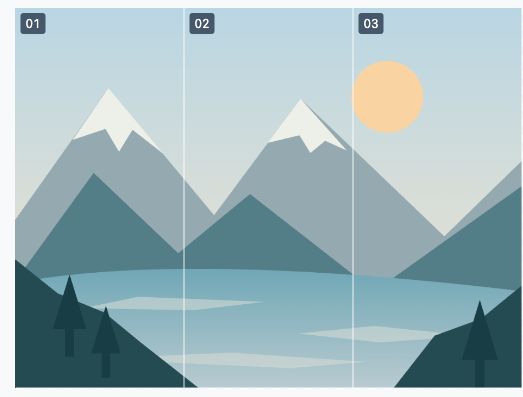


 01
 02
 03