Instagram Image Splitter

Split one photo into connected Instagram grid posts, preview the crop and download numbered tiles for free.

Source imageJPG, PNG or WebP · up to 25 MB / 24 MP

Drop your image here

JPG, PNG or WebP · Up to 25 MB

You can also paste an image with ⌘V or Ctrl+V
No image handy?
When a tile shape crops the image, drag the crop frame or use arrow keys to move it. Hold Shift for larger steps. You can also use the position sliders.
Your image stays on this deviceNo image selected

How to make an Instagram grid

Prepare separate posts that come together as one picture.

Shown with the sample image
  1. Actual upload area with the Choose image button and supported paste option
    JPG, PNG or WebP · Processed locally

    Choose a photo

    Choose the full photo you want to spread across your profile, with enough room around the subject for cropping.

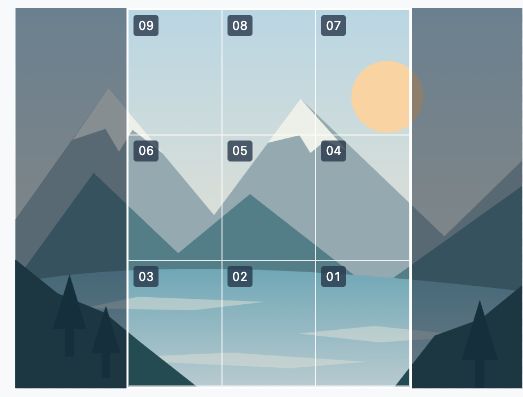
  2. Actual 3 by 3 portrait grid preview with 01 at bottom-right and 09 at top-left
    3 × 3 grid · Portrait 3:4 · Posting order

    Frame your profile grid

    Choose 9 posts and portrait 3:4 tiles. Drag the crop frame, or choose another tile shape to suit your profile.

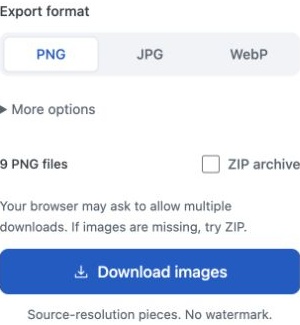
  3. Export format options, optional ZIP checkbox and Download images button
    9 PNG files · Bottom-right first

    Save in posting order

    Keep Posting order selected under Numbering in More options. Download the images, then publish them as separate posts in numerical order, starting with 01 at the bottom-right. Choose ZIP archive if you prefer one packaged download.

From one picture to a profile grid

Actual PNG files exported with this tool, using the included sample illustration.

A profile puzzle with a clear posting order

Follow the landscape across the tiles to see how the picture joins up. The numbers show the upload sequence for a profile ordered with the newest posts first.

3 rows × 3 columns · Portrait 3:4 · Posting order

Open the grid editor
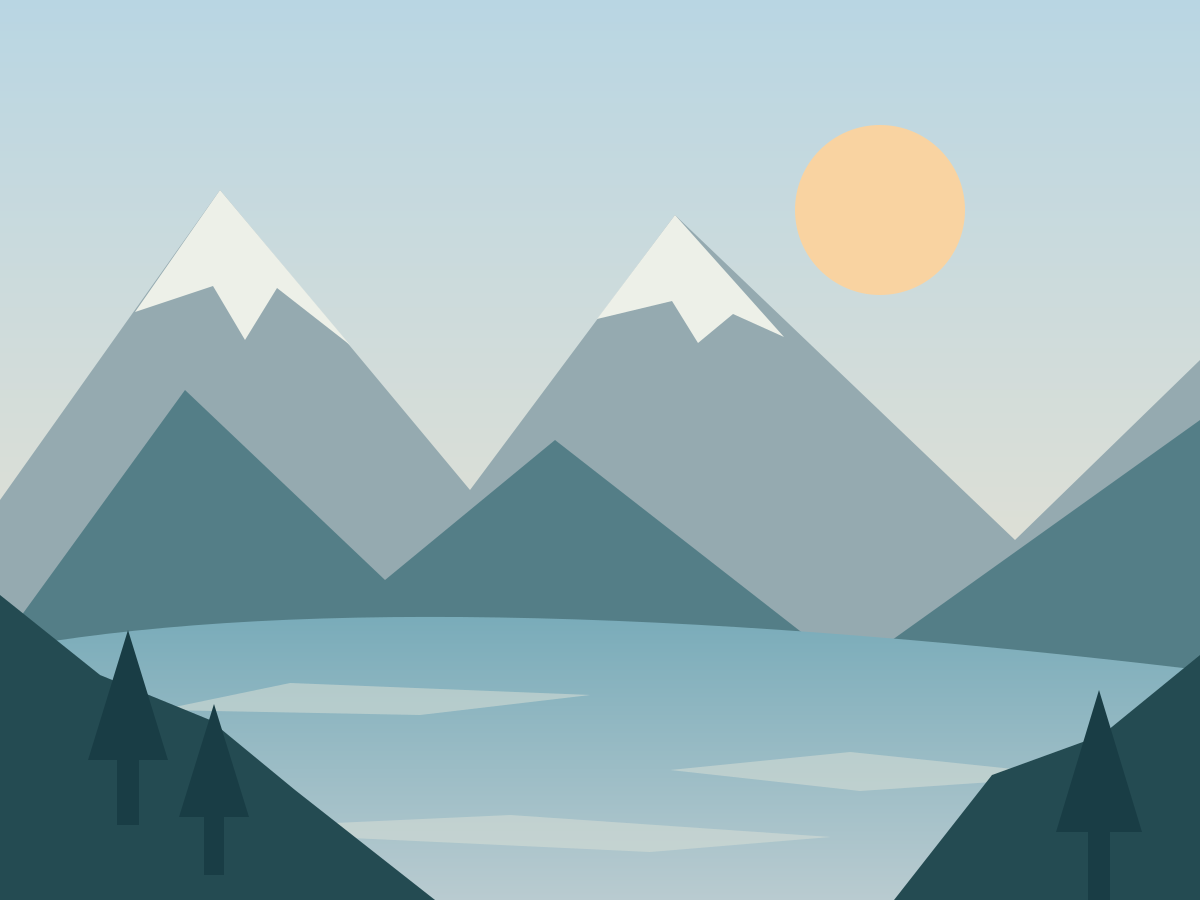
Original · 1200 × 900 pxOriginal mountain and lake illustration before splitting
9 files · 225 × 300 px each
Landscape slice 1 of 909
Landscape slice 2 of 908
Landscape slice 3 of 907
Landscape slice 4 of 906
Landscape slice 5 of 905
Landscape slice 6 of 904
Landscape slice 7 of 903
Landscape slice 8 of 902
Landscape slice 9 of 901
The centered crop keeps 675 × 900 pixels, leaving out the sides of the original picture. The gaps shown here are not added to the files.

Turn one photo into connected Instagram posts

This Instagram grid maker divides one photo into separate posts that form a larger picture on your profile. Use it for a launch image, an illustration or a coordinated photo display.

Choose a picture with clear details in each tile. A face that crosses a cut can look incomplete when someone opens a single post, so consider how the individual pieces will look outside the full grid.

Input
JPG, PNG, WebP
Output
PNG, JPG, WebP · ZIP
File limit
25 MB · 24 megapixels
16,384 px per side
Tiles per image
Up to 225

Questions & answers

Profile layout, posting order and picture framing.

Is a profile grid the same as a carousel?

No. A profile grid uses multiple separate posts to form a larger picture. A carousel is one post with several swipeable images. Use the carousel splitter to prepare that kind of sequence.

Which tile shape should I choose?

Choose 3:4, 4:5 or square to suit the display you are preparing for. Check the thumbnail crop in your own Instagram account before publishing. This preview shows the files you will download; it does not reproduce every profile layout.

Which image should I post first?

For a three-column profile ordered with the newest posts first, upload 01 from the bottom-right, then continue in numerical order to the top-left. Pinned or rearranged posts can break the pattern, so check the arrangement in your own profile. Later posts can also shift the grid.

Does the tool crop my picture?

Only if the picture does not fit the layout and tile shape you choose. Drag the crop frame or use the position sliders in More options to change which area is kept. Choose Original under Tile shape to keep the whole picture.

Can I publish directly to Instagram?

No. This tool prepares downloadable image files. It does not connect to your Instagram account or publish posts.

Where is my image processed, and is it stored?

Your image is processed in your browser and is not uploaded to or stored on our servers. Clear the image or reload the page to remove it from the editor. Files you download stay on your device.

Will splitting change image quality?

The tool cuts at the original pixel dimensions without resizing. PNG export avoids additional lossy compression. JPG and WebP are saved again at your chosen quality; even quality 100 may change fine detail. Original color profiles and metadata are not preserved.

Which format should I download?

Choose PNG for text, graphics and transparent images. JPG suits photos when file size matters, but fills transparent areas with white. WebP supports transparency and can produce smaller files; check that the app you are uploading to accepts it.